

How to change camera distance and height in GTA VI on PS5
Sources checked
Hold Down on the D-pad and tap Square to try a different camera view. To adjust how high the camera sits behind your character or vehicle, open Settings and choose the matching height row.
Change camera distance with the PS5 quick menu
If your character or car fills too much of the screen, try the three numbered views from the same spot. How To Video Game recorded these controls on PS5.
- While standing on foot or sitting in a parked car, hold Down on the D-pad. Keep it held while the quick menu is open.
- Find Camera in the lower right. Tap Square to cycle through 1, 2 and 3. The highlighted number shows your selection.
- Release Down to see the view in play. To compare it with the previous one, hold Down again and cycle back to that number.
Change camera height on foot or in a vehicle
The pause menu has separate height choices for walking and driving. You can keep the walking view you like while trying a higher view behind the car.
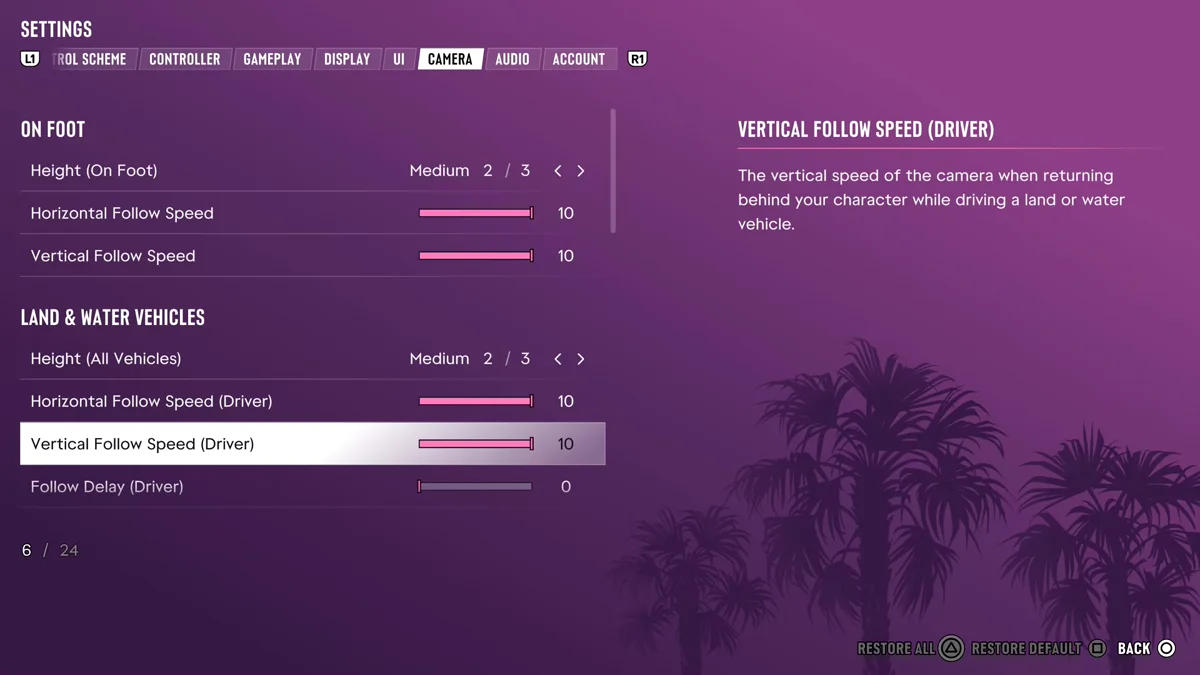
- Press Options, choose Settings and use R1 to reach Camera.
- For walking, highlight Height (On Foot). For a car, scroll to Land & Water Vehicles and highlight Height (All Vehicles).
- Note the current value, then press left or right on that row. The PS5 capture shows Medium as the middle of three choices. Back out and try walking or driving in the situation you changed.
Restore one camera setting
Return to the height row you changed. If you wrote down your earlier value, select it again. To return that row to its factory value, highlight it and press Square for Restore Default. The Triangle prompt, Restore All, resets the entire tab.
- If the framing is right but the camera bounces as you walk, check Camera Bob under Comfort.
- If you want to compose and save a still picture, open Photo Studio from the pause menu. The regular camera controls above change your view during play.