

Calibrate GTA VI’s HDR picture on PS5
Sources checked
If GTA VI looks washed out or too dark on PS5, pause the game and open Settings → Display → HDR Calibration. You can return to the same test images after first-time setup. Start on the screen you actually play on.
Open HDR Calibration in the game
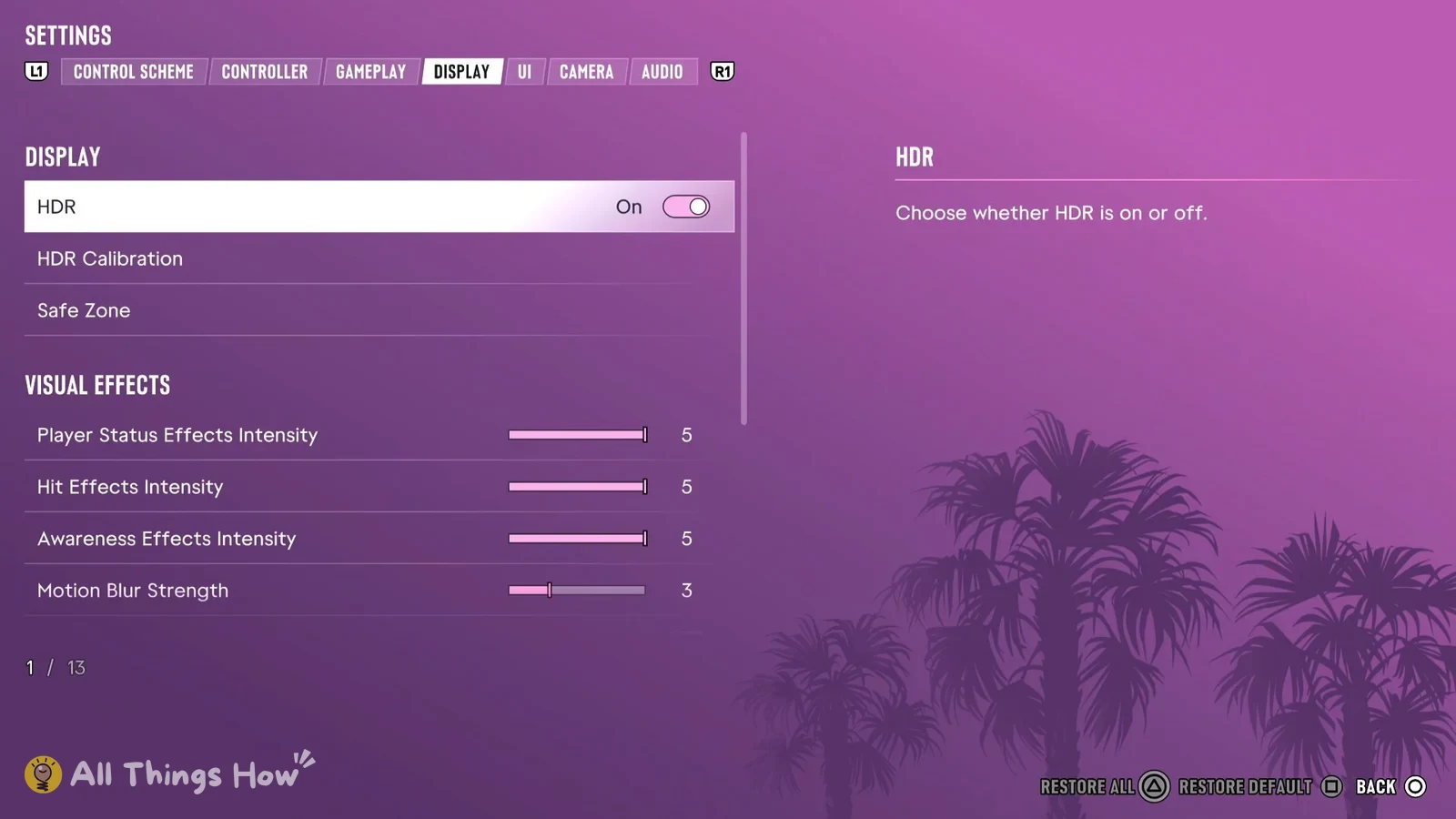
In All Things How’s PS5 capture, the Display tab starts with HDR, HDR Calibration and Safe Zone. Check that HDR is on, then choose HDR Calibration. If the edges of the HUD are cut off but the brightness looks right, choose Safe Zone instead.
Compare Max Brightness, Black Levels and Paper White
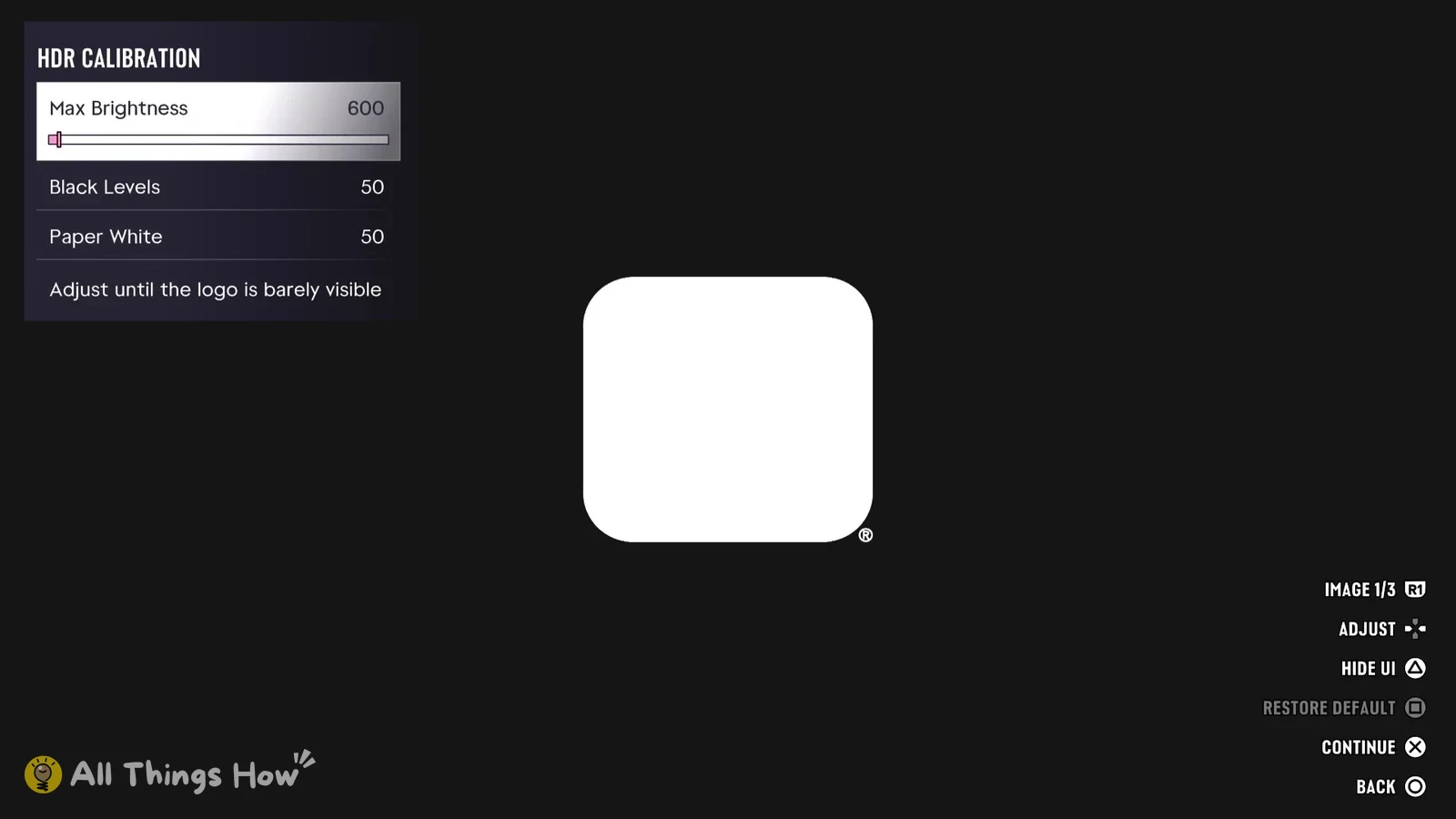
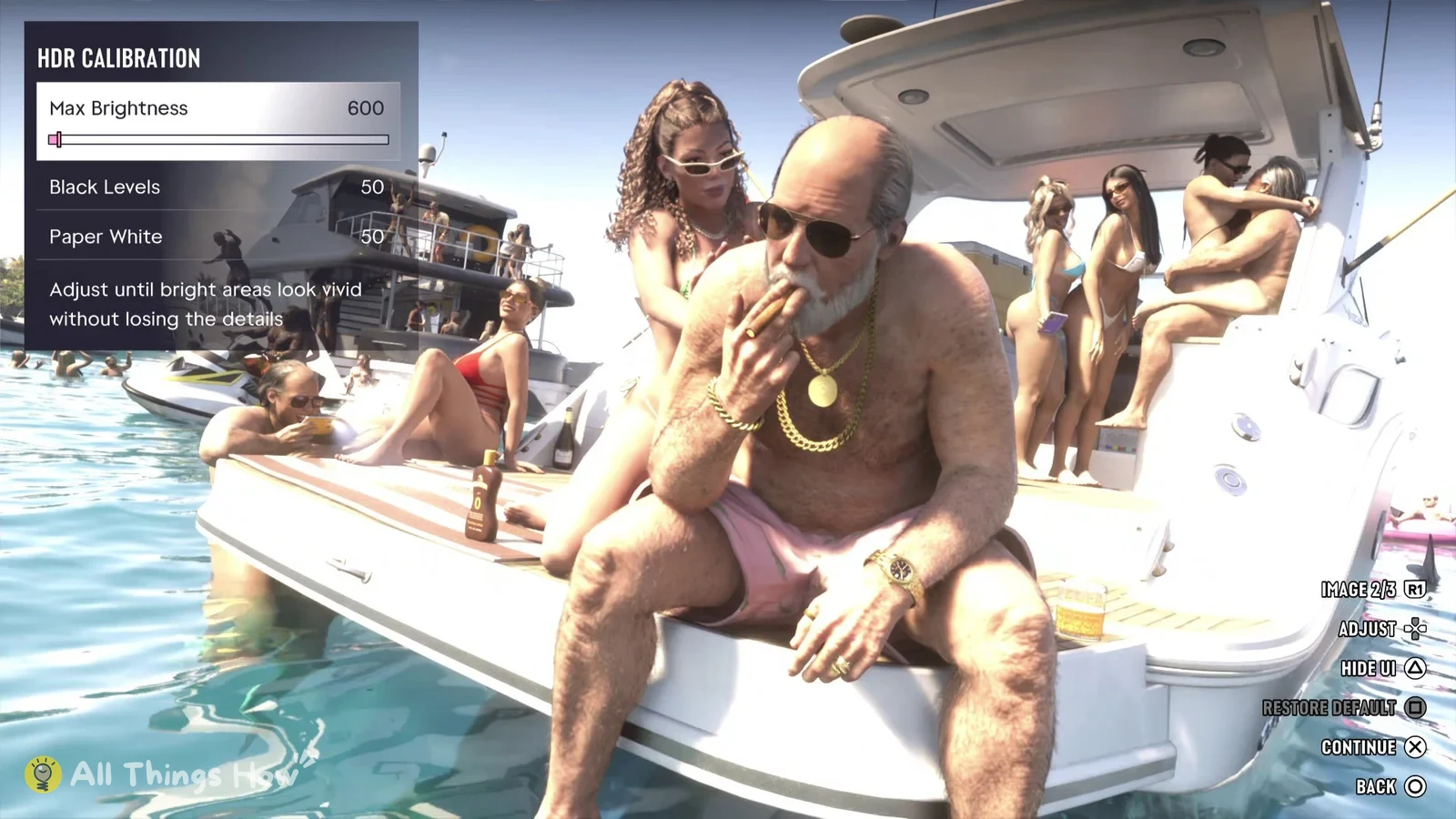
Start on the logo image. With Max Brightness selected, use the D-pad until you can just make out the logo. Press R1 to compare the daytime boat scene, then the night scene. Look for detail in the bright areas. Triangle hides the controls so you can judge the whole picture.
For Black Levels and Paper White, select the row and follow its own on-screen prompt. Work on one slider at a time. The values in the screenshots belong to that setup. Square restores the selected slider’s default if you want to try again. Press Cross to continue.
Check the console output if other games look wrong too
Open PS5 Settings → Screen and Video → Video Output. Compare the current signal and the information for the connected HDMI device. A missing HDR signal calls for a connection or console check before another pass through GTA VI’s sliders.